ROCoding #3: Ellipses and rings
The previous post in this series covered circular or radial blends and gradients. With a few simple modifications the code can be adapted to create elliptical and annular fills. Or eggs and doughnuts, if you prefer 😉.
Again, all these examples will be using various procedures from the previous posts.
RISC OS provides some graphics primitives to draw ellipses, and from BASIC this is:
ELLIPSE [FILL] centreX,centreY, width,height [, angle]
We won’t be using this however, and we won’t be including the angle setting, which draws a rotated ellipse. Let’s not make it too complicated…
Elliptical gradients
First we add some lines to PROCinit to set up some gradients to use (g%() will be used for generated blends):
DIM bow%(256),plasma%(256),g%(256)
nbow%=FNload_palette_file(”Palettes:bow2/pal”,bow%())
nplasma%=FNload_palette_file(”Palettes:Plasma/pal”,plasma%())
ng%=256
Our new procedure is PROCelliptical_gradient. The arguments are similar to PROCradial_gradient, with the addition of ecc, which is a measure of eccentricity. The horizontal radius is given by rad%, and the vertical radius is rad% multiplied by ecc. So positive values below 1.0 will squash it vertically, while values greater than 1.0 will give a tall ellipse. An ecc value of 1.0 will, of course, be the same as calling PROCradial_gradient.
DEF PROCelliptical_gradient(x%,y%,rad%,ecc,ncols%,gradient%(),flags%)
LOCAL vduvars%,c%(),radp%,s,i,os1%,X%,Y%,Y2%,d%
radp%=rad%>>xeig%
DIM vduvars% LOCAL 24, c%(radp%)
vduvars%!0=136: vduvars%!4=137:vduvars%!8=-1
SYS ”OS_ReadVduVariables”,vduvars%,vduvars%
VDU 29,x%;y%;
i=ncols%/radp%
IF flags% AND 2: s=ncols%-1: i=-i
FOR X%=0 TO radp%-1: c%(X%)=gradient%(s): s+=i: NEXT
os1%=1<<xeig%
FOR Y%=0 TO rad%*ecc-os1% STEP os1%
  Y2%=Y%/ecc*Y%/ecc
  FOR X%=0 TO rad%-os1% STEP os1%
    d%=SQR(Y2%+X%*X%)
    IF d%<(rad%-1) THEN
      SYS CT_SetGCOL%,c%(d%>>xeig%)
      POINT X%,Y%: POINT -X%,Y%: POINT -X%,-Y%: POINT X%,-Y%
    ENDIF
  NEXT
NEXT
VDU 29,vduvars%!0;vduvars%!4;
ENDPROC
The code is fairly similar, apart from the first lines of the Y% loop. We scale the vertical pixel loop (Y%) by ecc, and then the Y%-squared value — Y2% — is rescaled so it becomes, in effect, the Y value of a circular blend. Which is then used to get the colour.
Note that this procedure isn’t very robust, and would benefit from some error checking — for example, the ecc value should be checked it’s greater than zero.
 |
PROCinit PROCelliptical_gradient(128,128, 128, 0.3, nbow%, bow%(),0) PROCelliptical_gradient(48,128, 32, 4.0, nbow%, bow%(),2) PROCmake_blend(yellow%,red%,ng%,g%()) PROCelliptical_gradient(208,128, 32, 2.5, ng%, g%(),0) |
This draws two rainbow-filled ellipses with eccentricities of 0.3 (the wide one) and 4.0 (the tall one, with the palette inverted), and a blend between yellow and red.
 |
To finish, here’s a collection of 20 random ellipses with random colour blends: PROCinit FOR i%=1 TO 20 PROCmake_blend(RND,RND,ng%,g%()) xc%=RND(780)+10: yc%=RND(780)+10 r%=RND(100)+50: e=RND(100)/40+0.1 PROCelliptical_gradient(xc%,yc%, r%, e, ng%,g%(),0) NEXT |
Annular gradients
An annulus is a ring. As an aside, an annular eclipse is when the Moon appears slightly smaller than the Sun — caused by the lunar orbit being an ellipse, with varying distance from the Earth — and hence the eclipse appears as a ‘ring of fire’.
To create a ring, we provide inner and outer radii to our procedure in the parameters irad% and orad%. If the inner radius is zero, it will act like PROCradial_gradient.
Here’s the code:
DEF PROCannular_gradient(x%,y%,irad%,orad%,ncols%,gradient%(),flags%)
LOCAL vduvars%,c%(),radp%,s,i,os1%,X%,Y%,Y2%,d%
IF irad%>orad% SWAP irad%,orad%
IF (orad%-irad%)<8 ERROR 100, ”Inner and outer radius too similar”
radp%=(orad%-irad%)>>xeig%
DIM vduvars% LOCAL 24, c%(radp%)
vduvars%!0=136: vduvars%!4=137:vduvars%!8=-1
SYS ”OS_ReadVduVariables”,vduvars%,vduvars%
VDU 29,x%;y%;
i=ncols%/radp%
IF flags% AND 2: s=ncols%-1: i=-i
FOR X%=0 TO radp%-1: c%(X%)=gradient%(s): s+=i: NEXT
os1%=1<<xeig%
FOR Y%=0 TO orad%-os1% STEP os1%
  Y2%=Y%*Y%
  FOR X%=0 TO orad%-os1% STEP os1%
    d%=SQR(Y2%+X%*X%)
    IF d%>=irad% AND d%<(orad%-1) THEN
      SYS CT_SetGCOL%,c%((d%-irad%)>>xeig%)
      POINT X%,Y%: POINT -X%,Y%: POINT -X%,-Y%: POINT X%,-Y%
    ENDIF
  NEXT
NEXT
VDU 29,vduvars%!0;vduvars%!4;
ENDPROC
The main difference in the code is checking that d% is between the two radii before drawing anything. The procedure has some rudimentary error checking, to ensure that the ring isn’t unfeasibly thin. I’m also swapping them if they’re in the wrong order. To demonstrate:
 |
PROCinit PROCannular_gradient(400,400, 300,400, nbow%,bow%(),0) PROCmake_blend(green%,blue%,ng%,g%()) PROCannular_gradient(400,100, 100,280, ng%,g%(),0)  This is the rainbow gradient displayed in a ring with inner radius 300 and outer radius 400. Overlaid is a blend between green and blue with radii 100 and 280. Incidentally, you’ll notice from the picture on the right that the rainbow gradient is wrong — a real rainbow has red on the outside of the primary bow (the secondary, fainter one, is the other way round). Easy enough to change by setting flags% to %10. |
ROCoding #2: Circles
The first post in this series covered filling a rectangle with blends and gradients. This time we’ll look at generating circular or radial blends and gradients, which is a bit more complicated. All these examples will be using various procedures from the previous post.
RISC OS provides graphics primitives to draw outline and filled circles. From BASIC:
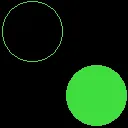 |
PROCinit SYS CT_SetGCOL%,&40dd4000 CIRCLE 64,192,60 CIRCLE FILL 192,64,60 |
The parameters are the centre coordinates and the radius, in OS units. As an aside, here’s the additive RGB triplet as used in the PhotoDesk manual, showing the complementary cyan, magenta and yellow colours. The circles are blended with the OR operation:
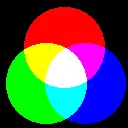 |
PROCinit SYS CT_SetGCOL%,red% CIRCLE FILL 128,160,80 SYS CT_SetGCOL%,blue%,,,,1 CIRCLE FILL 170,88,80 SYS CT_SetGCOL%,green%,,,,1 CIRCLE FILL 92,88,80 |
So, can we use these primitives to create a radial blend? Here’s a first attempt:
[Read more…]
ROCoding #1: Rectangles
Coming back to RISC OS has been interesting. I’ve had to re-learn a number of things, like using the WIMP and, in particular, graphics programming. I hope this article will be the first of a series explaining my learning curve, and hopefully providing some useful programs. It’s fairly basic — in all senses! — but does assume some familiarity with RISC OS and BBC BASIC.
We’ll start with some things you can do when drawing rectangles. While writing the Solar application I wanted to provide some better backgrounds for the graphs. A plain background is easy, of course: just use RECTANGLE FILL with some appropriate colour, like this.
 |
GCOL 0,&ff,&dd,&ff RECTANGLE FILL 0,0,256 |
…which draws a 256×256 square at the graphics origin. More generally, RECTANGLE accepts both width and height, which can be negative.
First up, we’ll generate a blend between two colours, from the bottom to the top of the rectangle. We’re assuming a full-colour display here, which is necessary for displaying blends with any fidelity. The Solar application graphs are built up by redirecting all graphics output to a sprite, then letting the Wimp handle displaying them on screen; this takes care of any mismatch between the screen and graph colour depths.
[Read more…]
Gradgrind update

Gradgrind has been updated to 0.92beta, with new features and a number of important bug fixes.
New features include the ability to import/export GIMP palettes, modify palette files in more ways, and an extra display for the palette.
Download directly, or see the Downloads page for full details of the changes.
Gradgrind is a RISC OS program. It will not run under any other OS.
WebP on RISC OS
About WebP
WebP — capitalised thusly — is a graphics format developed by Google intended as a replacement for JPEG, PNG and GIF formats; most modern browsers can handle WebP images. The format supports both lossy and lossless compression, as well as animation and an alpha channel. WebP files may contain metadata (in ICCP, EXIF or XMP formats) such as a thumbnail image and technical details such as the camera settings used.
WebP was first fully released in 2018, and since then has been getting progressively more widespread on the web. It claims to have various advantages over previous formats, chiefly in reduced file size (though there is criticism regarding fidelity). The following table shows how its usage on the web has been increasing, expressed as the percentage of websites which use the format:
| 2020 | 2021 | 2022 | 2023 | 2024 | 2025 (Jan) | 2025 (Oct) |
| 0.2% | 0.5% | 3.0% | 6.5% | 10.8% | 14.9% | 17.9% |
[Source: https://w3techs.com/ … w/image_format/all/y ]
WebP on RISC OS
The WebP format is now fairly well supported on RISC OS, at least for still images. PhotoDesk (3.23) can load and save them, and there are the free stand-alone conversion applications Spr2WebP and WebP2Spr courtesy of Richard Coleman, who did the hard work — see Links section below. It’s also been reported that the RISC OS port of ImageMagick 7 can be used to convert WebP files to and from sprites.
RISC OS web browsers which can render static WebP images include NetSurf and Iris.
Animation support is much more limited. As far as I know no-one has ported Google’s img2webp to RISC OS; this can produce animations from a sequence of still images. There are however various online converters.
On RISC OS, the Iris browser can render animated WebP files, but NetSurf can’t.
WebP files have an official filetype of &a66, with type name WebP. The extension is “filename.webp”, and the details should be included in your mimemap file. To check:
- Open a task window (Ctrl-F12)
- Type:
mimemap webp
If you see the message “No MIME mapping found” you need to add it as follows:
- Type:
filer_run inetdbase:mimemap
- Your system’s mimemap should open in an editor window
- Look for the “image”+”IANA registered” section, and add the following line (the gaps are tabs):
image/webp WebP a66 .webp
- Save the file; the setting will take effect after the next boot
Examples
I’m using a couple of images to demonstrate WebP. The flowers picture is a 1280×1280 detail from a photo taken in Zambia by a Canon Ixus, so originally a JPEG. The screengrab image (732×714, 24-bit RGB) is from my in-progress app for reporting on our solar panel installation. These were saved as sprites (which is lossless, of course), and then converted into various formats using various apps and settings.
NB: The images below (in WebP format — if you can’t see them your browser doesn’t support the format) are not the actual images used, they’ve been resized and are just for reference. You can download the original sprite files in the Links section below.
 |
 |
||||||||||||||||||||||||||||||||||||
|
|
The WebP conversions were done with Spr2Webp, using the settings of Photo and Lossless (for the flowers) and Picture and Drawing (the screengrab). You can also use PhotoDesk, but this uses the same code as Spr2Web so the sizes are pretty much identical. Lossless takes longer (but you’ll usually only need to do it once).
The JPEGs were done with Paint, with the quality settings in parentheses.
The PNGs of the flowers are provided for interest only, as you wouldn’t normally save a photo in this format. Paint and Spr2Png produce identical output, with compression set to 9 in both cases. Paint uses RISC OS’ internal PNG library, while Spr2Png has its own converter.
Of more interest are the PNG entries for PhotoDesk. The first, labelled “PhotoDeskA”, uses the default settings when saving a PNG from PhotoDesk, and they are actually larger than the sprite, possibly due to being interlaced. The second (”PhotoDeskB”) has the settings tweaked. This isn’t straightforward, as the save box doesn’t include any options to change parameters. You have to shift-click on the !PhotoDesk app to open it, then on “Resources”, then on “Formats”, then shift-click on “!3PNG”. Open the directory “Options”, then load “spr2png” which should contain just the text “-ia” (without the quotes). Change this to “-ia9” — the “9” increases compression — and save. Doing this improves the compression markedly, though still not as good as Spr2Png. You could probably improve things more by modifying the options; PhotoDesk’s PNG library is very similar to that used by Spr2Png. Or more simply, as PhotoDesk appears to perform negative compression on PNGs, save as a sprite and drop the icon on Spr2Png. Or load it into Paint and save as a PNG from there.
Summary
It’s quite hard to see much visual difference between these images, with the exception of the JPEG (75) version of the screengrab, where artefacts are visible in colour transitions.
For photographs, WebP in Photo mode is the most efficient, for both lossy (JPEG equivalent) and lossless transmission/storage.
For line drawings or screengrabs use WebP with Picture or Drawing presets.
If you need maximum portability under RISC OS, especially legacy versions, JPEG and PNG are still the best options.
Links
WebP on Google, on Wikipedia
Richard Coleman’s conversion apps (webp2spr, spr2webp and webpinfo, along with desktop front ends)
Darren Salt’s Spr2Png and Png2Spr apps
PhotoDesk is available via the !Store app
Example images as used above (4Mb zipped sprites)